Exporting Points
Use the Point Configuration Manager utility to export point configuration data to a .csv file to be used for creating new points or updating existing points.
Alternatively, some import/export functions can be performed using a command prompt. See Using Command-Line Parameters for more information about this option.
Exporting Point Configuration Data
Use the Export option to export existing point configuration data to a .csv file. The data included in the export is as configured in the export options, based on the configuration data available for the points contained in the filtered results list.
Note: Ensure that your export contains the configuration data intended before taking action to export. Because data is retrieved when the utility filter is initially resolved, it is recommended that you verify that the data in your view is still current to avoid unintentional reversion of any subsequent changes that may have been made. See Filtering and Viewing Points for more information.
To Export Points to a CSV File
- In the Point Configuration Manager, filter the point list so that the points you want to export are listed.
- To export a set of points, use Ctrl+Click to select individual points from the results list.
- Click Export to access the Export Options dialog box.
|
Export Options |
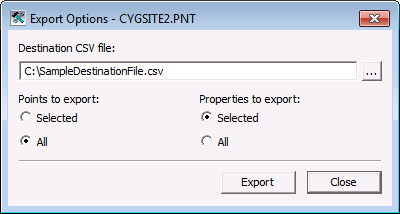
- In the Destination CSV file text box, either type in a known path and file name or click ... to select a directory destination for the export .csv file and specify its file name. If you type the name, be sure to add the .csv file extension.
- In the Points to Export area, specify if the export will apply only to the points Selected from the list, or to all points Filtered into the list generated from the PNT.
- In the Properties to Export area, specify if the export will apply only to the Selected properties or to All properties of the points to export.
- When all selections are defined, click Export to CSV to create the file.
Note: ID values are not exported. The column is included but the values are not, since a Point ID cannot be changed once the point has been created.


